
Project Settings
All global WebAP settings are centralized in one location: Edit -> Project Settings -> Adaptive Performance (Web)
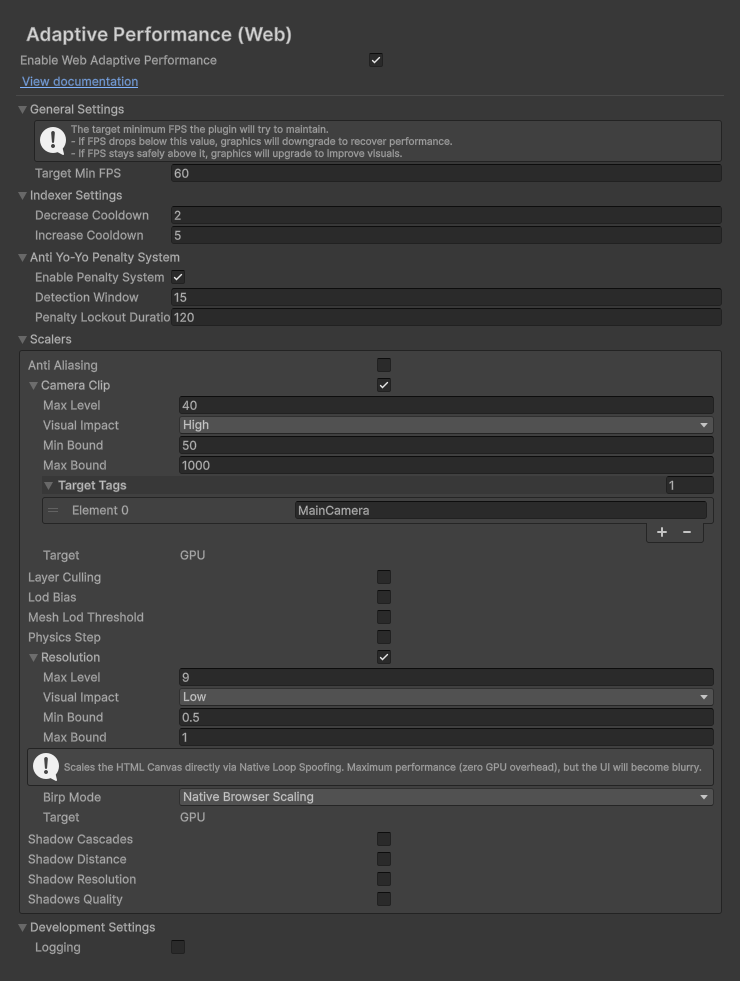
General Settings
| Parameter | Description |
|---|---|
| Target Min FPS | The performance baseline. • If the current FPS drops below this value (accounting for headroom), the plugin begins reducing graphics quality. • If the FPS remains consistently above it, the plugin attempts to increase quality. Recommendation: Set realistic values. For WebGL, the de-facto standard is 60, but for heavy 3D projects, you can utilize 30. |
Indexer Settings
| Parameter | Description |
|---|---|
| Decrease Cooldown | The time (in seconds) the system waits after decreasing quality before evaluating FPS again. Recommendation: Should be short (1.0 - 2.0 sec). The system must react rapidly to lags and "drop ballast" until the FPS stabilizes. |
| Increase Cooldown | The wait time after increasing quality. Recommendation: Should be long (5.0 - 10.0 sec). Before burdening the system again, it must verify that the previous graphics upgrade did not destabilize the frame. |
Anti Yo-Yo Penalty System
Protects against "ping-ponging", where quality endlessly toggles between two levels.
| Parameter | Description |
|---|---|
| Detection Window | The timeframe during which the system closely monitors FPS after an increase in quality. If an FPS drop occurs within this period, the system classifies it as a Yo-Yo Effect. |
| Penalty Lockout Duration | The penalty duration (e.g., 60 seconds) during which any attempts to increase quality are completely blocked. |
NOTE
The penalty exclusively blocks increases. If the FPS drops again, the system can still urgently decrease quality.
Scalers
Every active Scaler possesses a baseline set of parameters. These parameters determine its "cost" to the system. The plugin automatically calculates this cost in real-time: Scalers with the lowest visual impact and matching target (CPU/GPU) are engaged first.
| Parameter | Description |
|---|---|
| Max Level | The number of discrete steps (levels) between baseline and minimum quality. For example, Max Level = 4 means the Scaler possesses 4 degradation steps. |
| Min Bound | The minimum scale value (applied when the Scaler reaches its Max Level). For example, 0.5 represents a quality reduction to 50% of the original. |
| Max Bound | The maximum scale value. Typically equals 1.0 (100% quality), which is the default value at Level 0. |
| Visual Impact | The visual impact on the render (Low, Medium, High). The plugin systematically increases levels (reduces quality) on Scalers with a Low impact first. |
| Target | Specifies which subsystem the Scaler optimizes (CPU, GPU, or both). If the current system Bottleneck is CPU, the plugin will ignore GPU-Scalers. |
| Target Tags | Certain specialized Scalers (WebResolutionScaler, WebCameraClipScaler, WebLayerCullingScaler) apply their settings to specific cameras in the scene rather than globally. |
Utilizing Camera Tags
These Scalers do not utilize the Camera.main call. Instead, they scan active cameras using the Target Tags array.
By default, the MainCamera tag is specified there. If your game utilizes custom camera tags (e.g., PlayerCamera), you must add them to the Scaler settings. Otherwise, scaling for those cameras will fail to trigger.
Development Settings
This section is designated exclusively for debugging plugin behavior within the browser or editor.
| Parameter | Description |
|---|---|
| Logging | Enables detailed logging of the plugin's operations to the browser (or Unity) console. Outputs messages regarding Bottleneck shifts, Scaler activations, and Anti Yo-Yo Penalty System triggers. |
Optimization
Logging utilizes the internal DebugWebAP wrapper. It is highly recommended to disable Logging in final release (Production) builds to conserve resources and keep the console clean.